

How to Configure Extraction
Follow these steps to generate leads from Google Maps inside your campaign.1. Access Campaign Settings
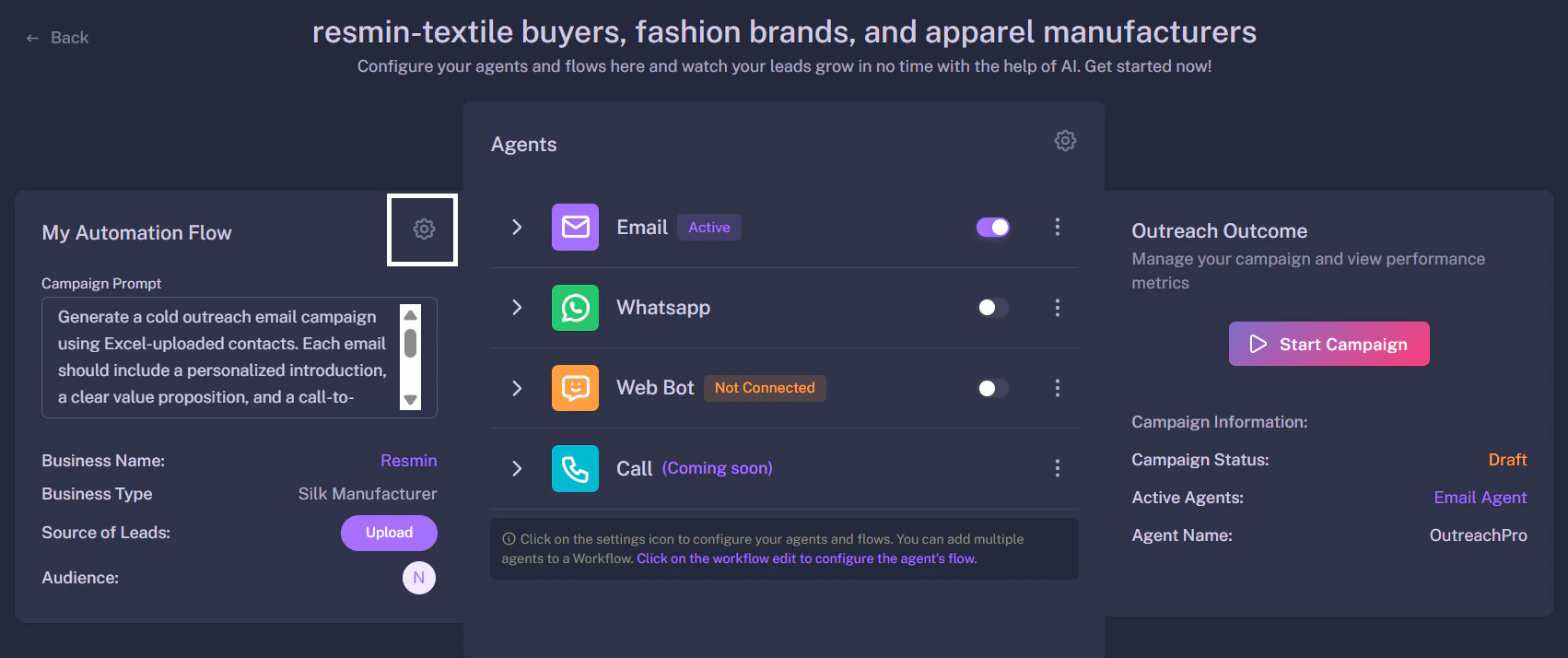
Navigate to your active campaign or create a new one. Look for the “My Automation Flow” card on the left side of the screen. Click the Gear Icon (⚙️) on this card to open the configuration menu.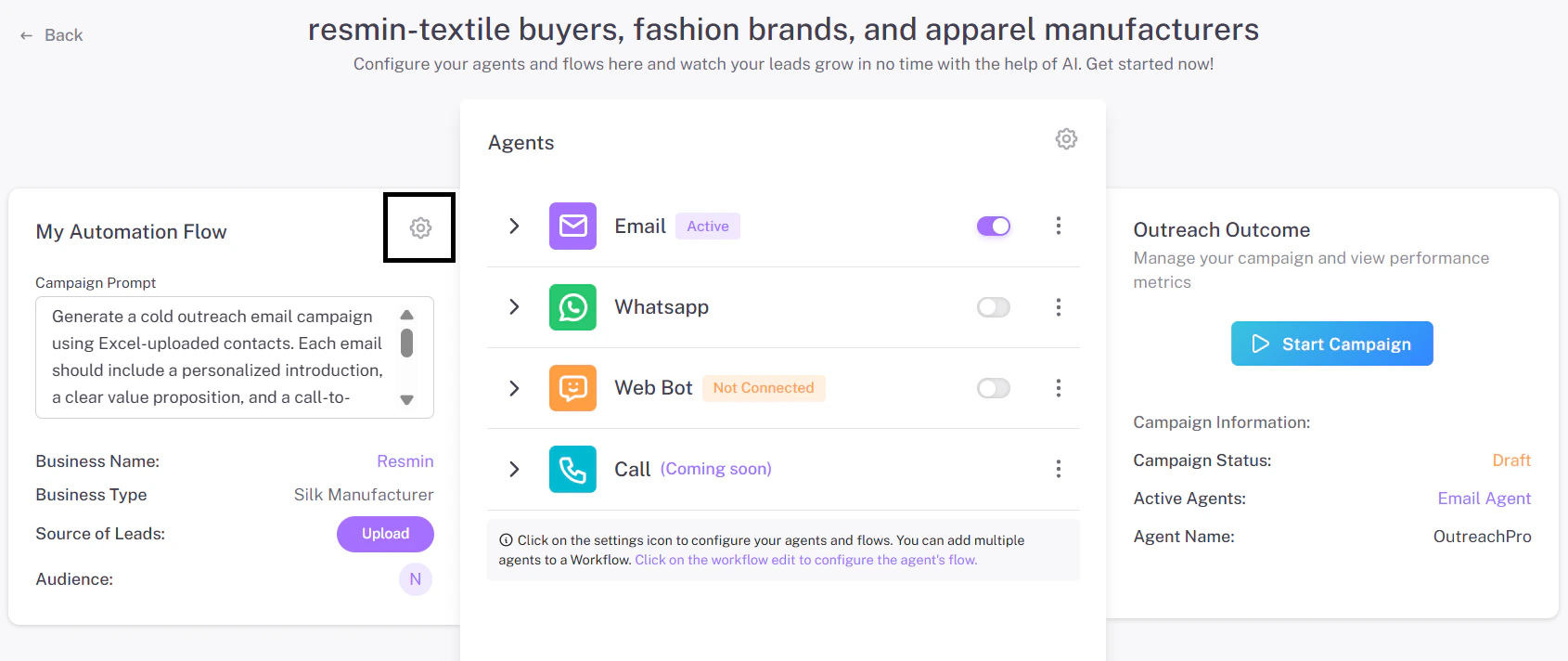
2. Select Lead Source
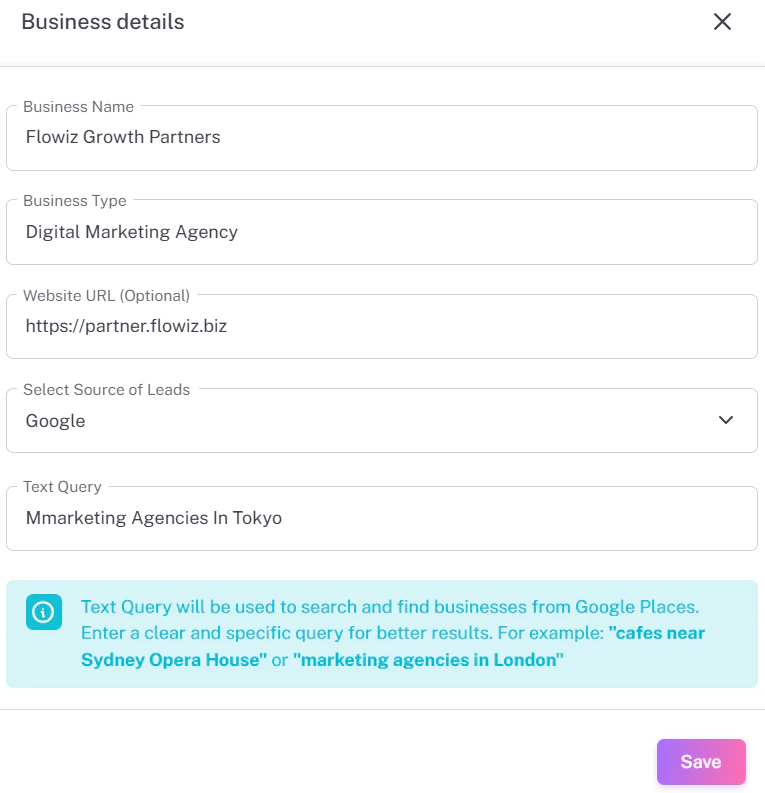
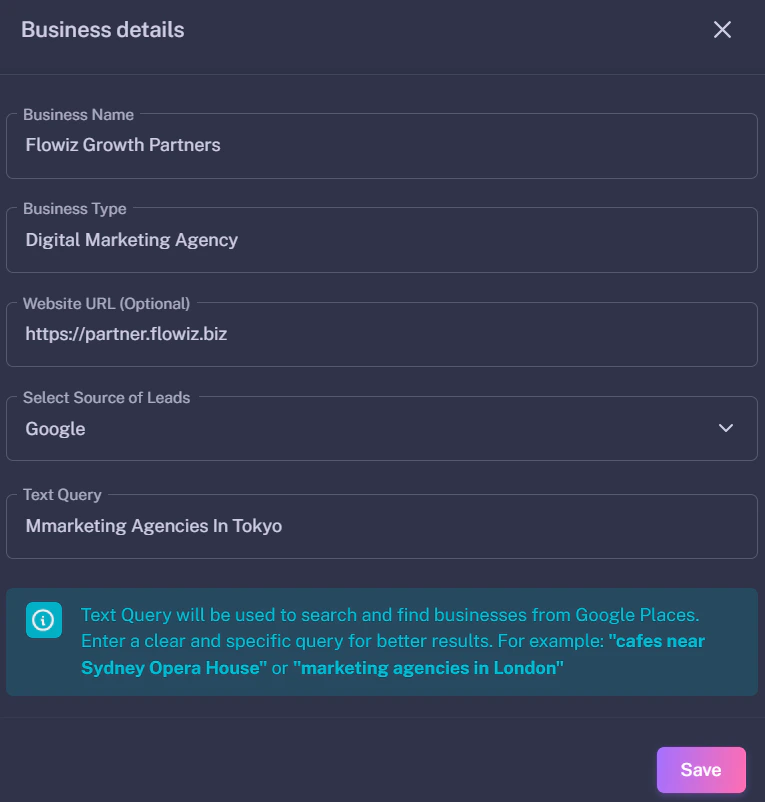
A “Business Details” form will slide open from the right.- Locate the Select Source of Leads dropdown.
- Choose Google from the list.
3. Define Your Search Query
Once “Google” is selected, a new field called Text Query will appear. This is where you tell the AI what to look for.- Format:
[Business Type]in[Location] - Example: “marketing agencies in Tokyo” or “Italian restaurants in New York”
4. Save and Fetch
Click Save. The system will begin scanning Google Maps immediately.- Processing Time: It typically takes 1 to 2 minutes to fetch and verify the data.
- Results: The extracted businesses (Names, Phones, Emails) will automatically appear in your Leads tab, ready for your campaign.