
1. Accessing the Web Bot Builder
To start building, navigate to your campaign and locate your Web Bot automation card. Just as we discussed in the Building Email Workflows guide, you can click the Three Dots (Action Menu) or Edit Icon on the card to view, edit, and update your flows. Click edit to open the visual canvas.2. Understanding the Chat Workflow Graph
When you open the Web Bot canvas, you will see a flow designed for instant categorization.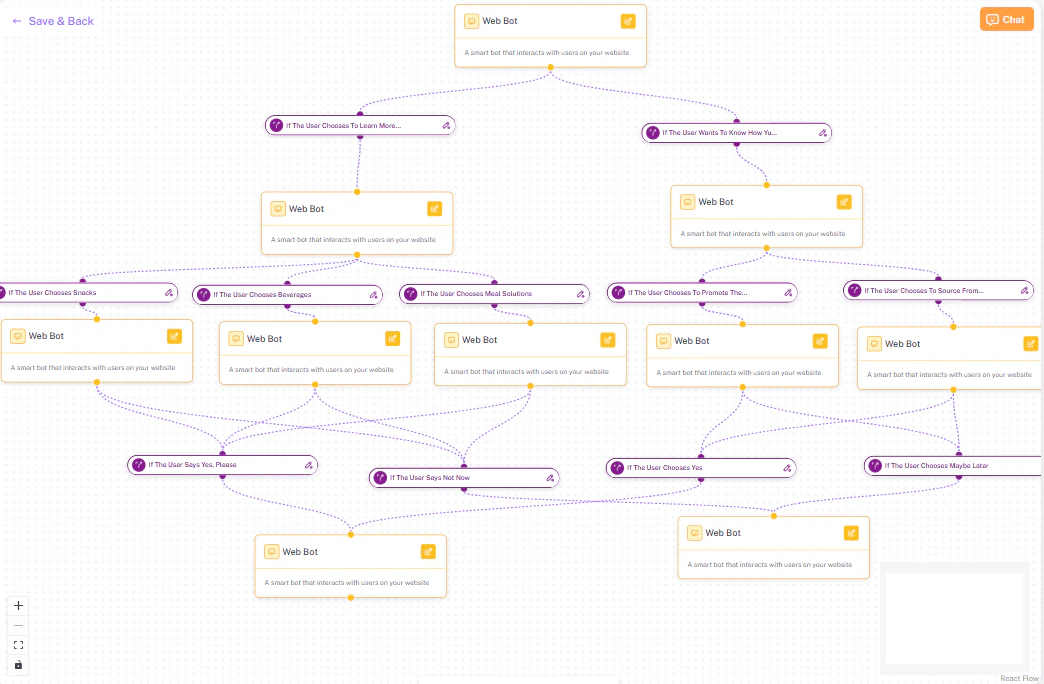
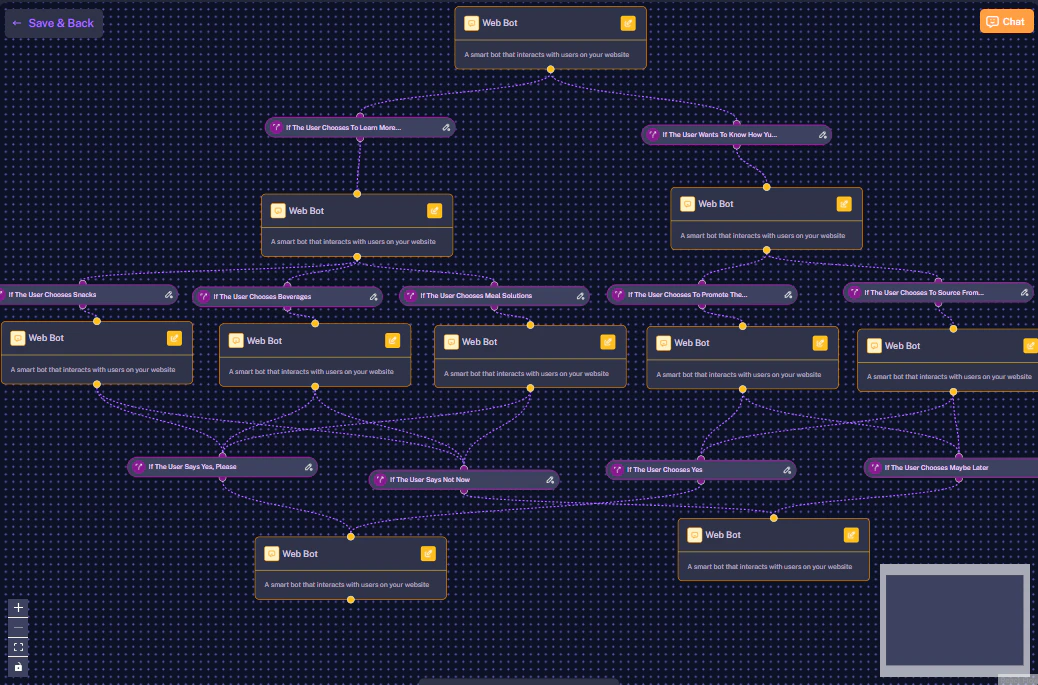
- If intent is
Sales Inquiries, the bot shifts to a Capture Email node to secure the lead’s contact info. - If intent is
Support, the bot shifts to an Ask Issue node to gather troubleshooting details. - If intent is
General Queries, the bot shifts to a Provide Information node to answer basic FAQs.
3. Configuring Chat Nodes (Intents Only)
To configure these specific rules, click the edit icon on any chat node. The “Configure Chat” sidebar will slide open. Key Difference: You will notice this configuration screen is much simpler than the Email or WhatsApp setup. Because the Web Bot is live, there are no delay settings or complex variable dropdowns. This sidebar focuses entirely on Intents.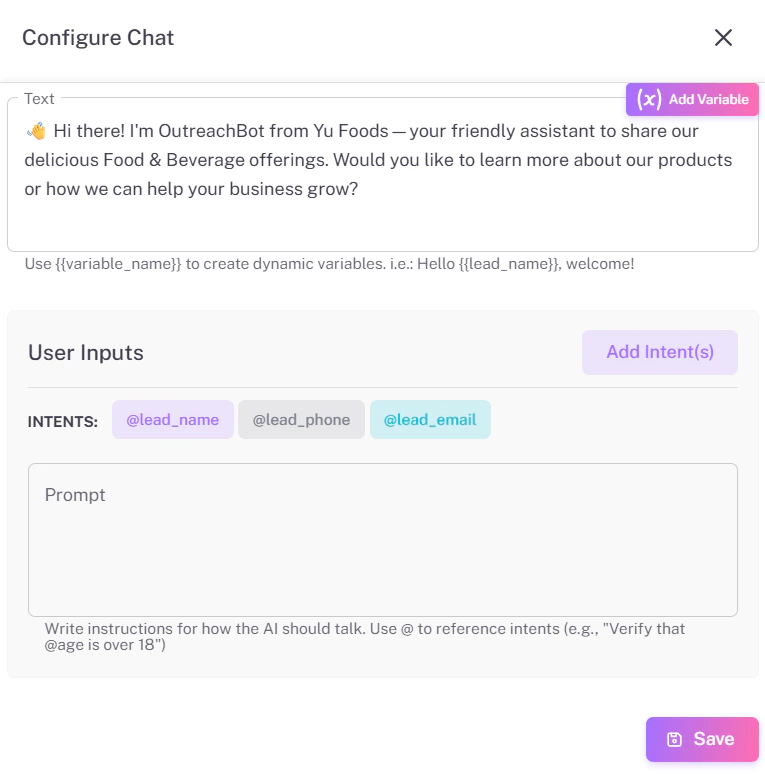
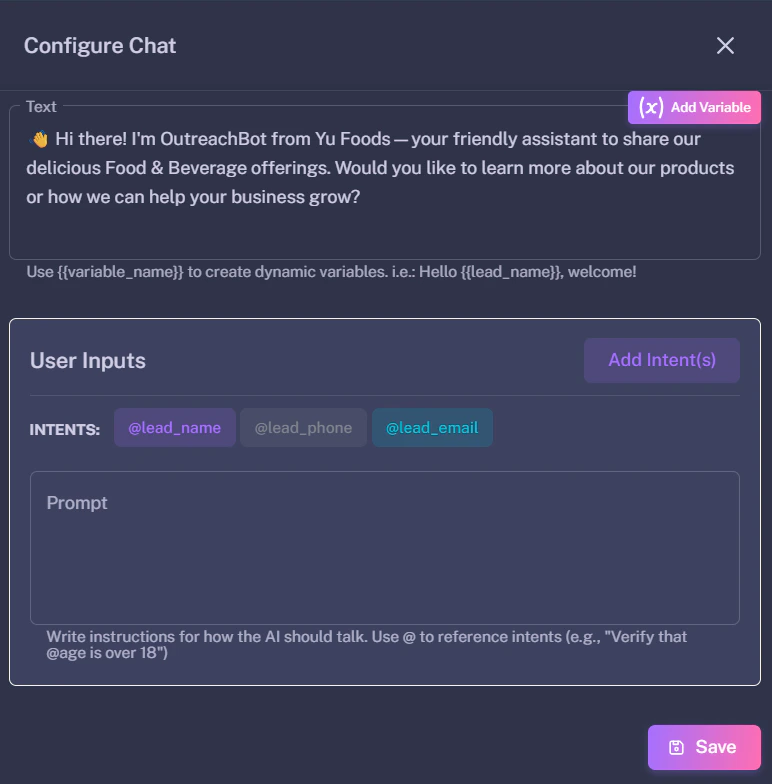
4. Saving Your Web Bot Flow
When your conversational branches are complete:- First, make sure you save any specific node you are editing by clicking the Save button at the bottom of the “Configure Chat” sidebar.
- Once your entire visual workflow looks perfect, navigate to the top right of the screen and click Save & Back.