The Interface
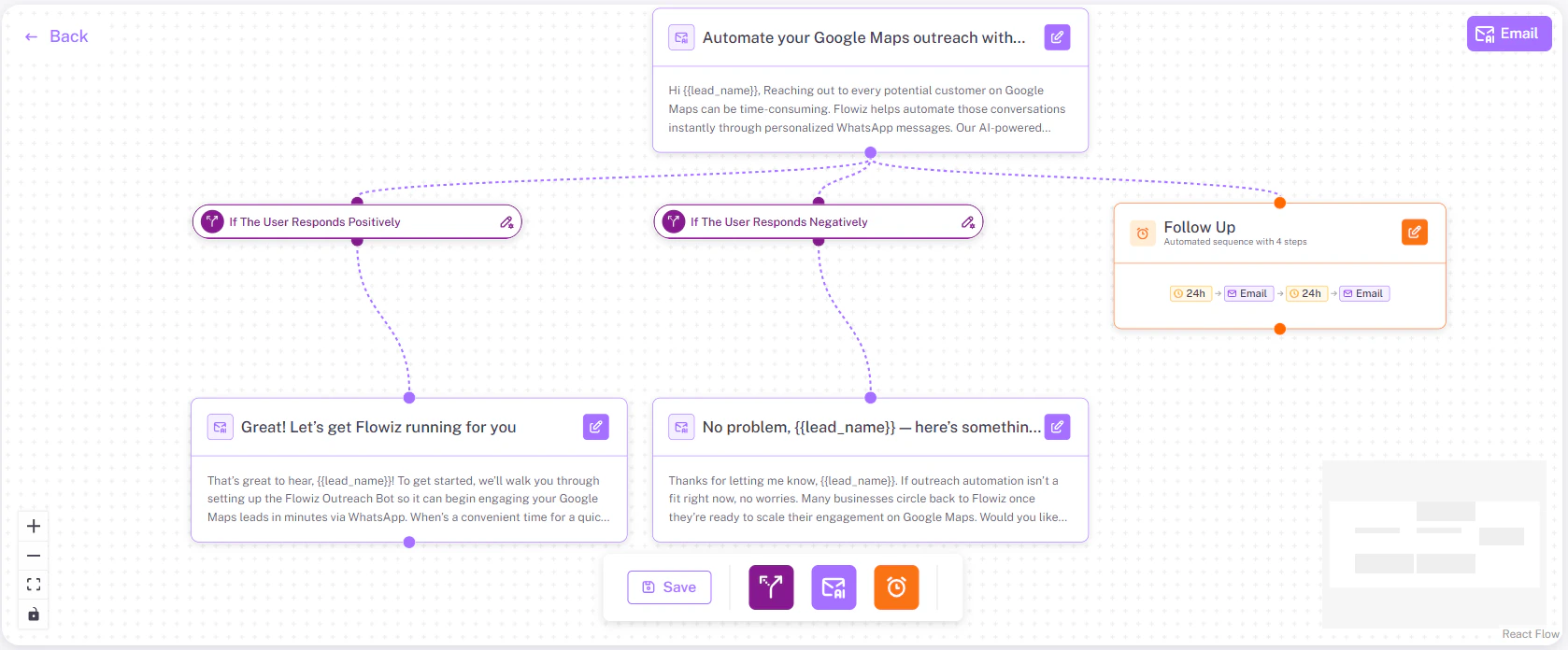
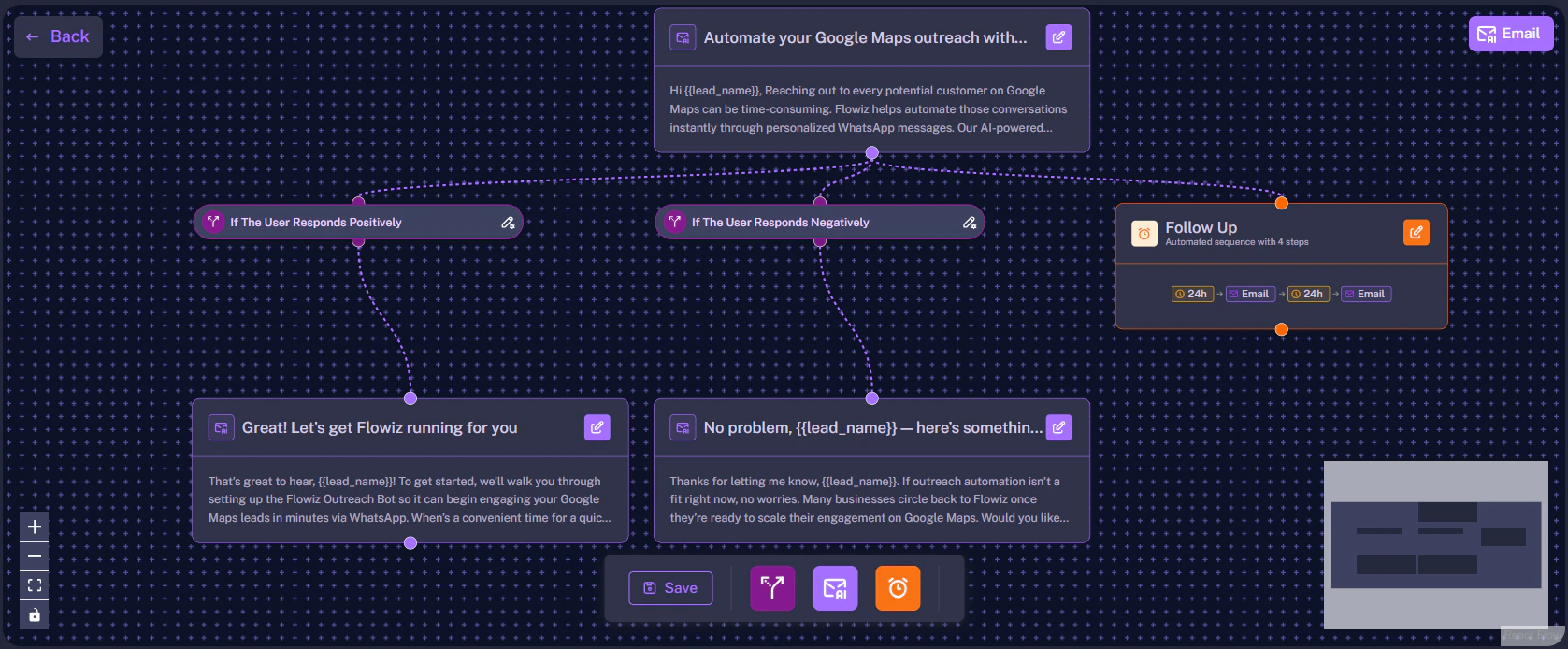
The canvas represents your campaign timeline from left to right.- Nodes: The boxes representing actions (e.g., “Send Email”).
- Edges: The lines connecting the nodes, representing the path of the lead.
Understanding Nodes
There are four main types of nodes you will see on the canvas:Trigger Node
The starting point. Usually “New Lead Added” or “Audience Upload”.
Action Node
Performs a task. Examples: Send Email, WhatsApp Message.
Logic Node
Diamond-shaped boxes that make decisions (e.g., “Did they reply?”).
Delay Node
Pauses the flow. Example: “Wait 24 Hours”.
Editing a Flow
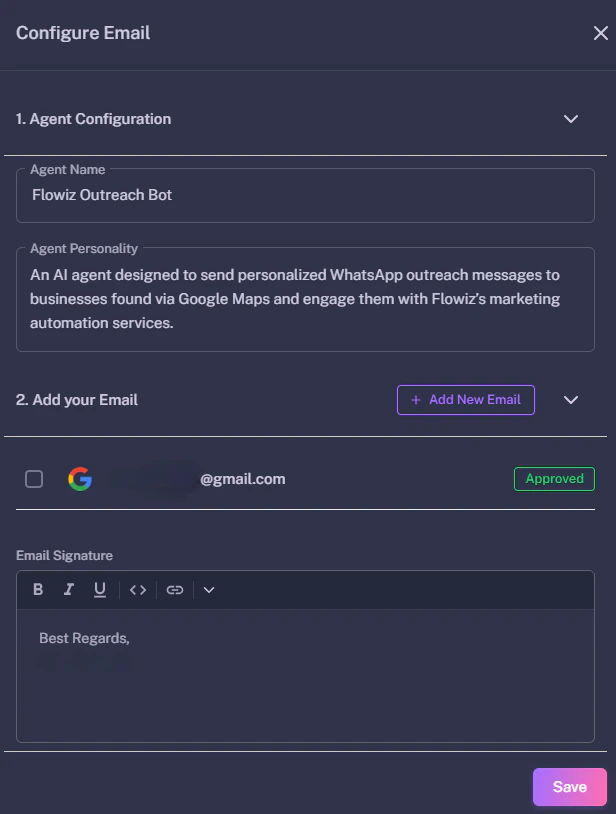
To change settings, simply click on any node. A configuration panel will slide out from the right side of the screen.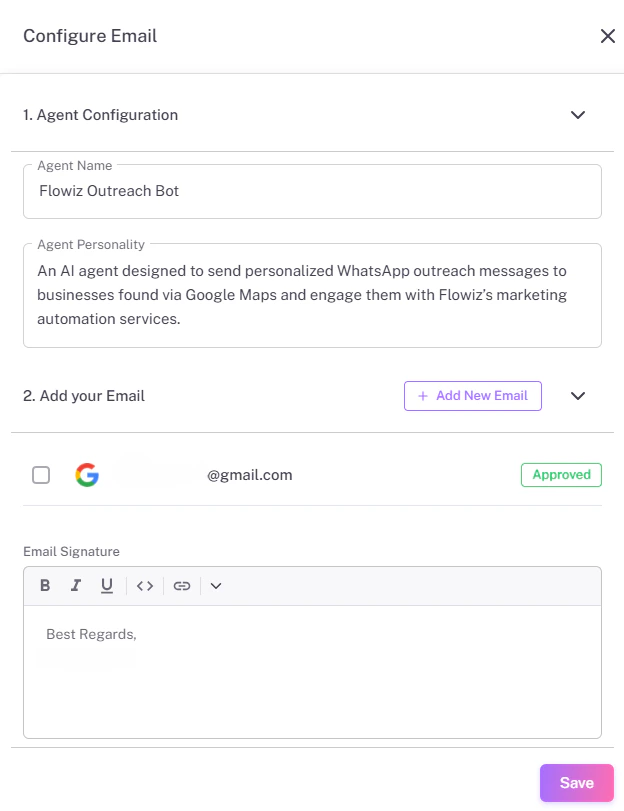
Common Actions
- Edit Content: Click an Email node to change the Subject Line or Body text.
- Delete Step: Click the trash icon on a node to remove it.
- Reconnect: Click and drag from the circle on one node to the circle on another to create a new path.