> ## Documentation Index
> Fetch the complete documentation index at: https://cybernauts.mintlify.site/llms.txt
> Use this file to discover all available pages before exploring further.
# Google Maps Extraction
> Generate fresh leads by scraping business data directly from Google Maps.
Flowiz allows you to turn Google Maps into a live database. Instead of buying old lists, you can generate fresh leads in real-time by configuring your automation source.
## How to Configure Extraction
Follow these steps to generate leads from Google Maps inside your campaign.
### 1. Access Campaign Settings
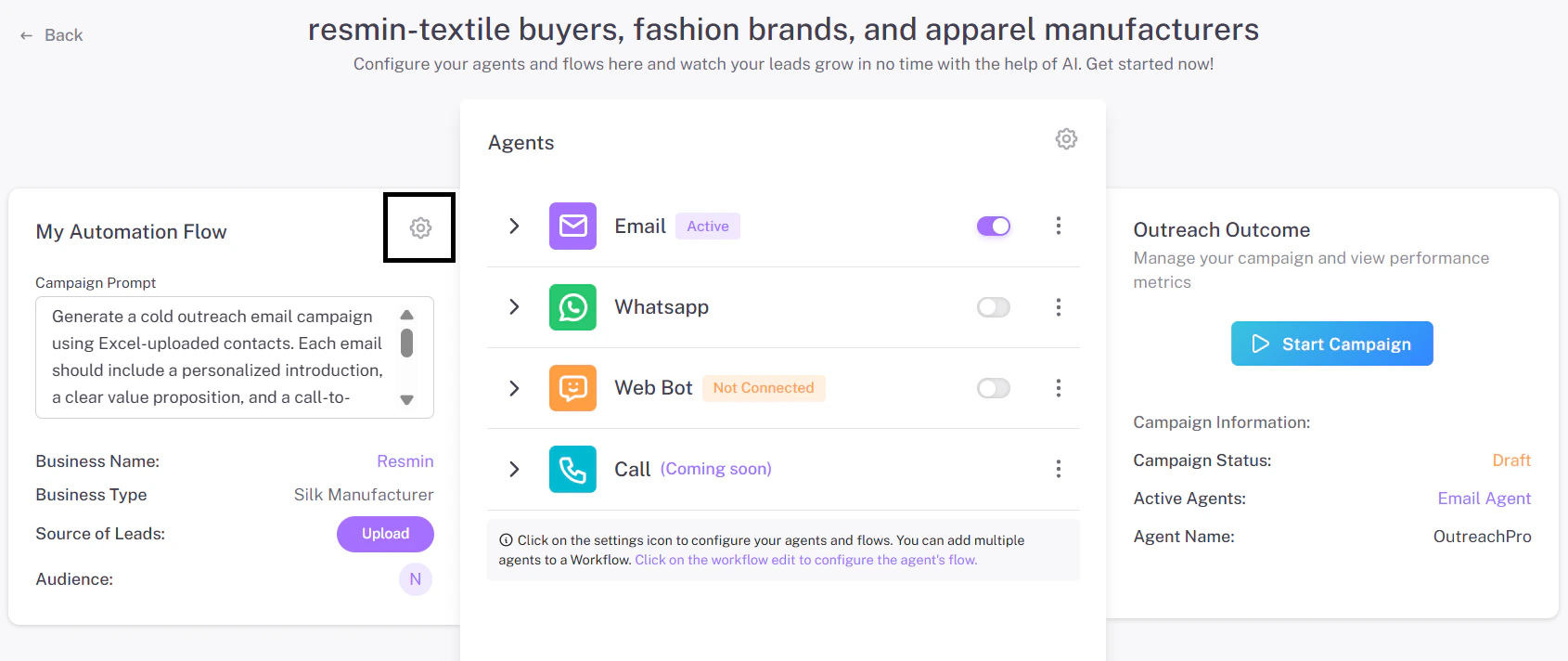
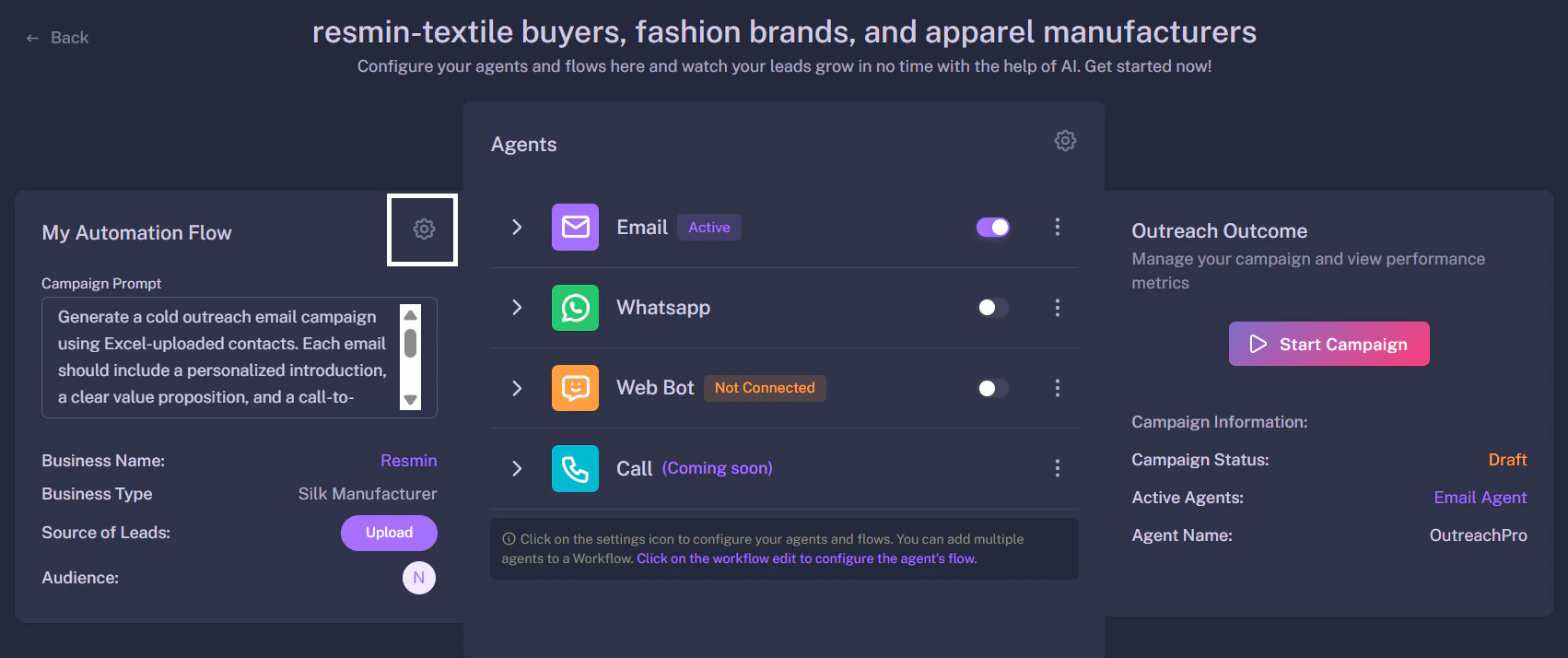
Navigate to your active campaign or create a new one. Look for the **"My Automation Flow"** card on the left side of the screen.
Click the **Gear Icon (⚙️)** on this card to open the configuration menu.
 ### 2. Select Lead Source
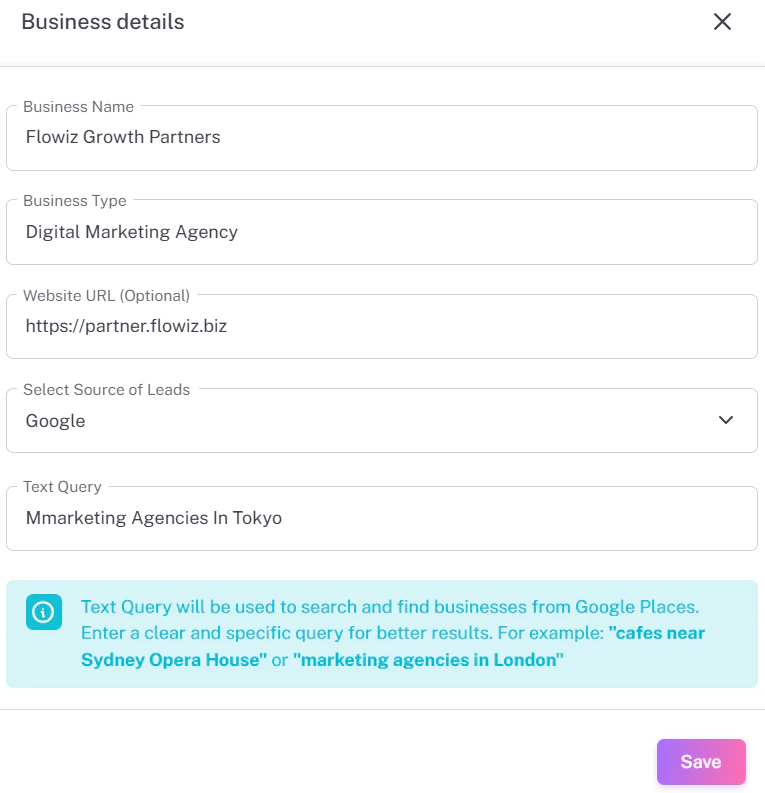
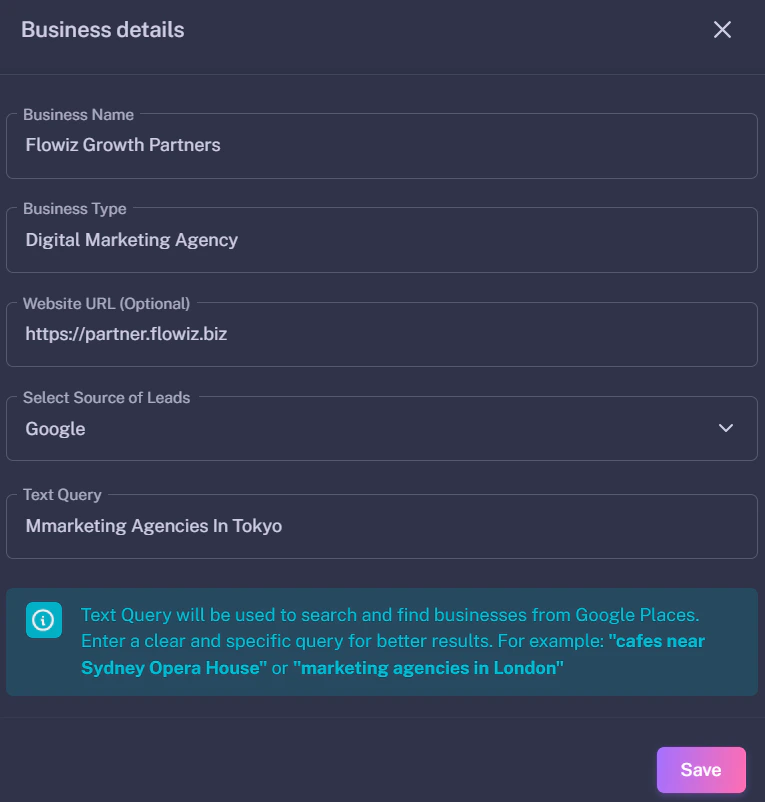
A **"Business Details"** form will slide open from the right.
1. Locate the **Select Source of Leads** dropdown.
2. Choose **Google** from the list.
### 3. Define Your Search Query
Once "Google" is selected, a new field called **Text Query** will appear. This is where you tell the AI what to look for.
* **Format:** `[Business Type]` in `[Location]`
* **Example:** "marketing agencies in Tokyo" or "Italian restaurants in New York"
### 2. Select Lead Source
A **"Business Details"** form will slide open from the right.
1. Locate the **Select Source of Leads** dropdown.
2. Choose **Google** from the list.
### 3. Define Your Search Query
Once "Google" is selected, a new field called **Text Query** will appear. This is where you tell the AI what to look for.
* **Format:** `[Business Type]` in `[Location]`
* **Example:** "marketing agencies in Tokyo" or "Italian restaurants in New York"
 ### 4. Save and Fetch
Click **Save**. The system will begin scanning Google Maps immediately.
* **Processing Time:** It typically takes **1 to 2 minutes** to fetch and verify the data.
* **Results:** The extracted businesses (Names, Phones, Emails) will automatically appear in your **Leads** tab, ready for your campaign.
### 4. Save and Fetch
Click **Save**. The system will begin scanning Google Maps immediately.
* **Processing Time:** It typically takes **1 to 2 minutes** to fetch and verify the data.
* **Results:** The extracted businesses (Names, Phones, Emails) will automatically appear in your **Leads** tab, ready for your campaign.