> ## Documentation Index
> Fetch the complete documentation index at: https://cybernauts.mintlify.site/llms.txt
> Use this file to discover all available pages before exploring further.
# Microsoft Outlook
> Enable syncing for Outlook and Office 365 accounts.
Microsoft blocks external tools by default. You must enable "Syncing" to let Flowiz read your replies.
## Enable POP/IMAP
1. Log in to Outlook.com or Office 365.
2. Click the **Gear Icon** (Settings) -> **View all Outlook settings** (link at bottom).
3. Navigate to **Mail** -> **Sync email**.
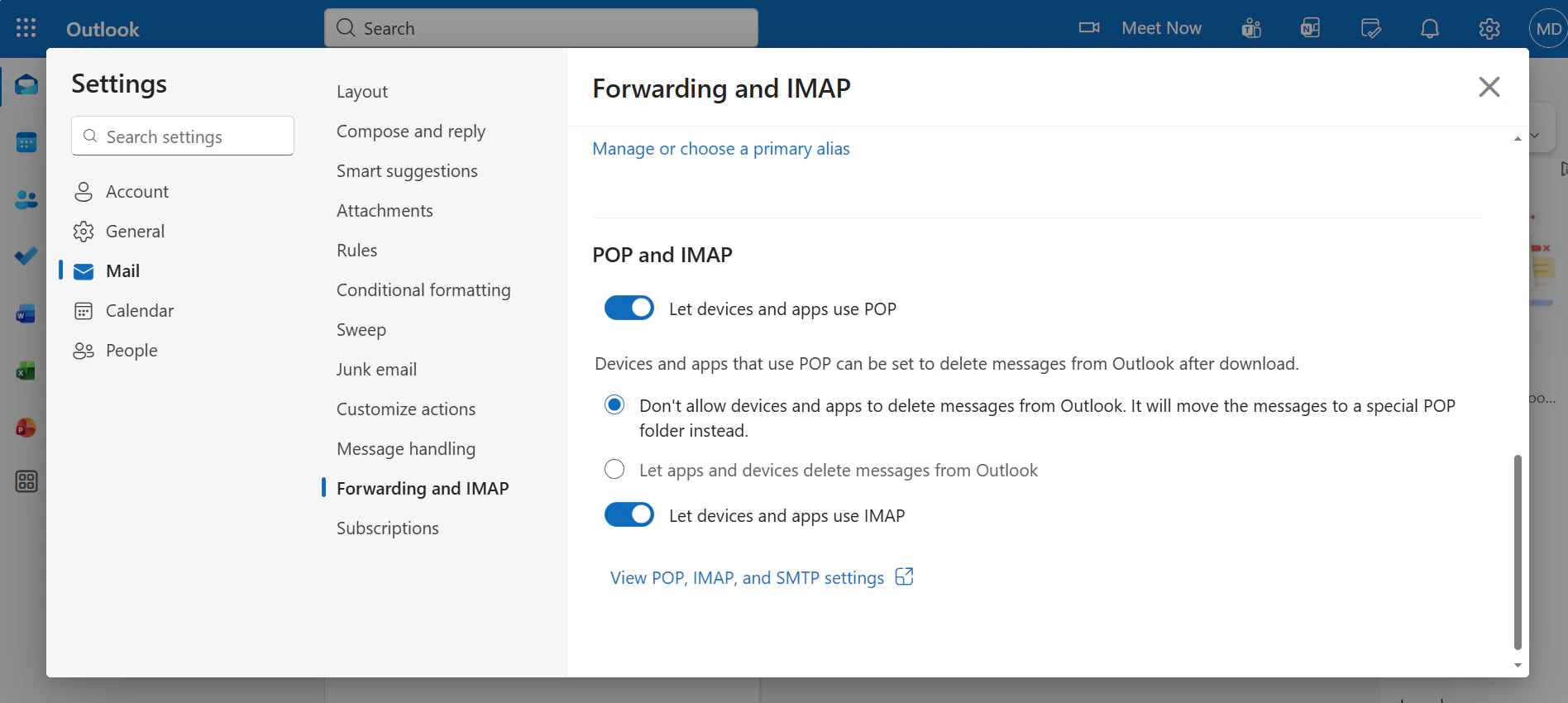
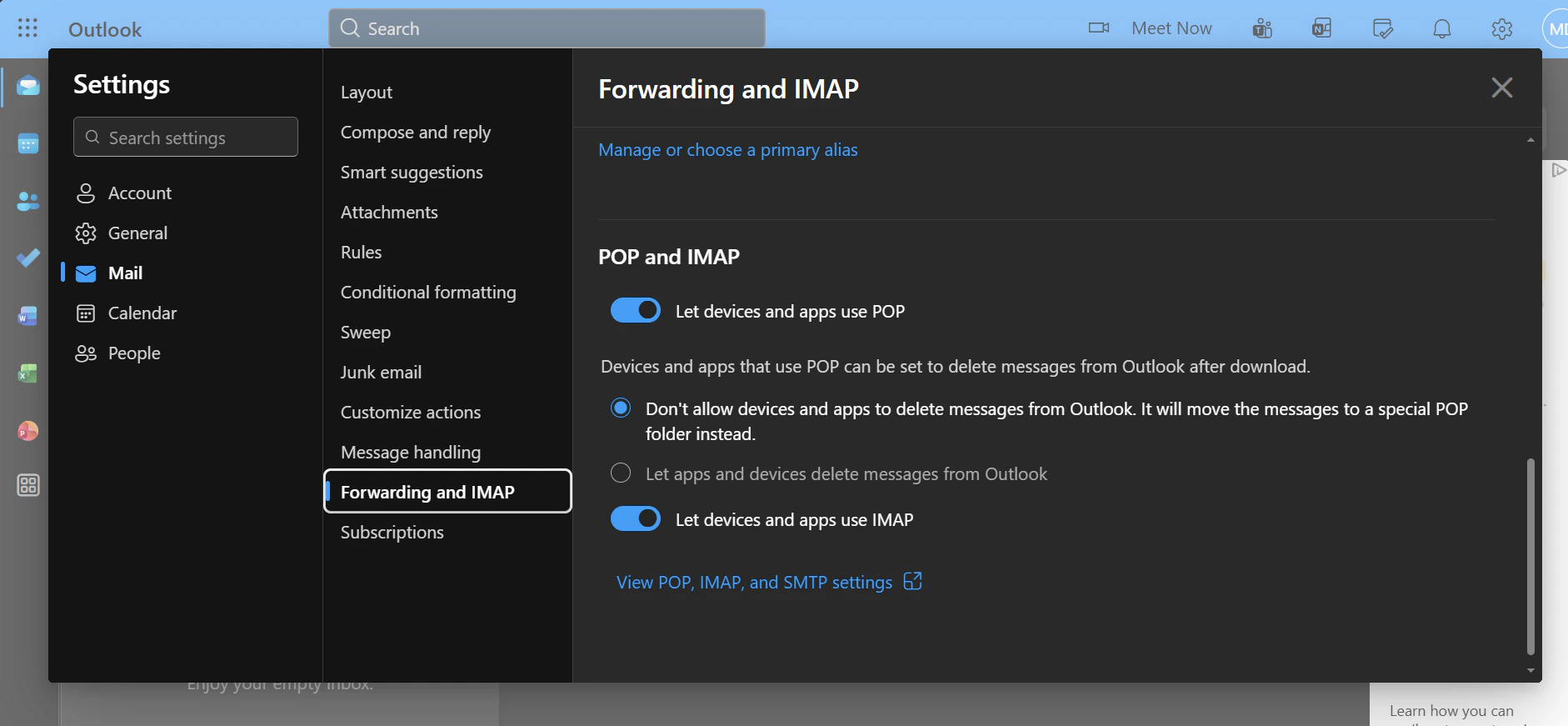
4. Scroll down to the **POP and IMAP** section.
 ### Required Settings:
* **Let devices and apps use POP:** Select **Yes**.
* **Let devices and apps use IMAP:** Select **Yes**.
Click **Save**. You can now use your standard Outlook email and password inside Flowiz.
### Required Settings:
* **Let devices and apps use POP:** Select **Yes**.
* **Let devices and apps use IMAP:** Select **Yes**.
Click **Save**. You can now use your standard Outlook email and password inside Flowiz.