> ## Documentation Index
> Fetch the complete documentation index at: https://cybernauts.mintlify.site/llms.txt
> Use this file to discover all available pages before exploring further.
# Building WhatsApp Workflows
> Design automated WhatsApp message sequences with dynamic variables and conditional branching.
Just like with email campaigns, Flowiz allows you to build dynamic, multi-step WhatsApp automation flows. By integrating WhatsApp, you can reach your leads on their preferred platform, combining AI-driven prompts with automated follow-ups.
## 1. Accessing the WhatsApp Builder
To start building, navigate to your campaign and find the WhatsApp automation card. Click the **Edit Icon** on the workflow button to open the visual workflow canvas.
## 2. Configuring Initial WhatsApp Messages
Click the **Edit Icon** on the first WhatsApp node to open the configuration sidebar.
 Similar to configuring emails (as discussed in the [Building Email Workflows](./email) guide), you can personalize your message here.
1. Use **Dynamic Variables** by typing `@` to inject personalized data like `@firstName` or `@company`.
2. Define the **AI Prompt** that the bot should use to generate the WhatsApp message.
3. Define the **Intents** at the bottom of this sidebar to categorize lead replies. This logic works exactly the same way as the **Intent Branches** detailed in our [Building Email Workflows](./email#3-handling-replies-intent-branches) guide.
Click **Save message** when you are done modifying your node.
## 3. Response Paths (Positive/Negative)
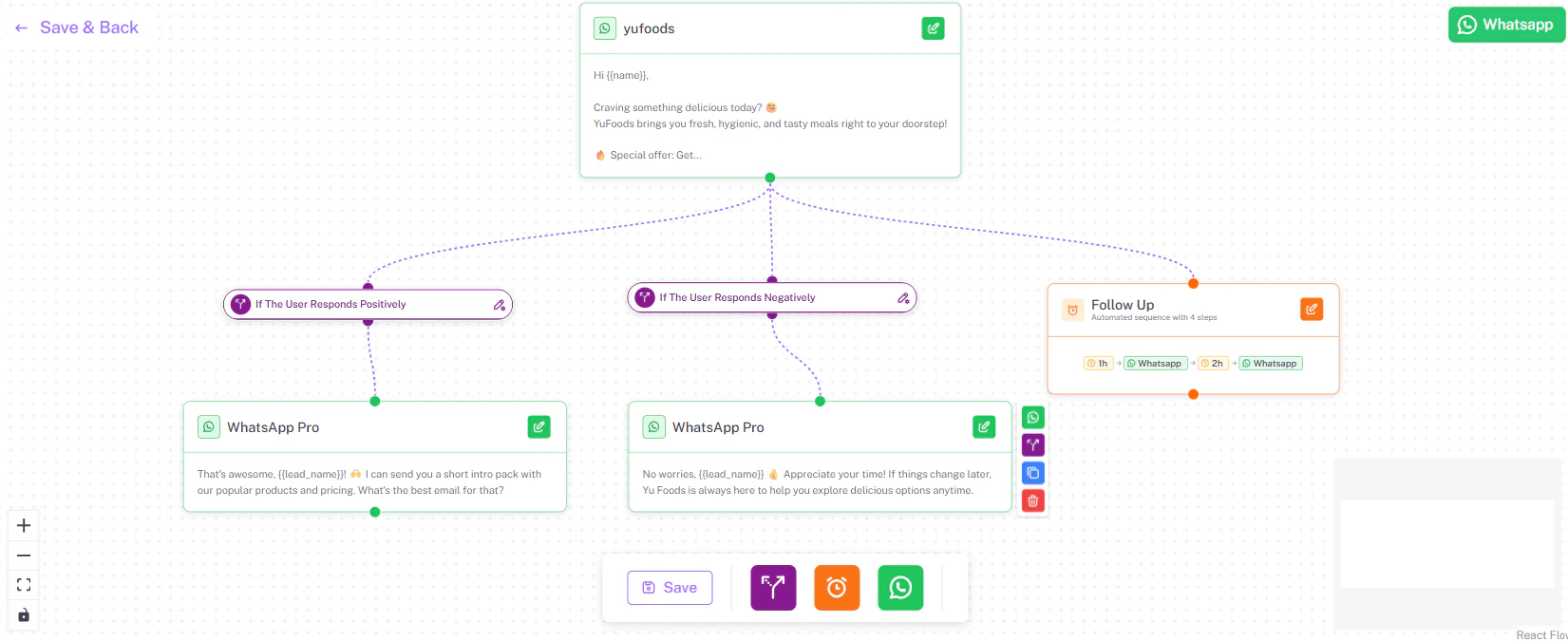
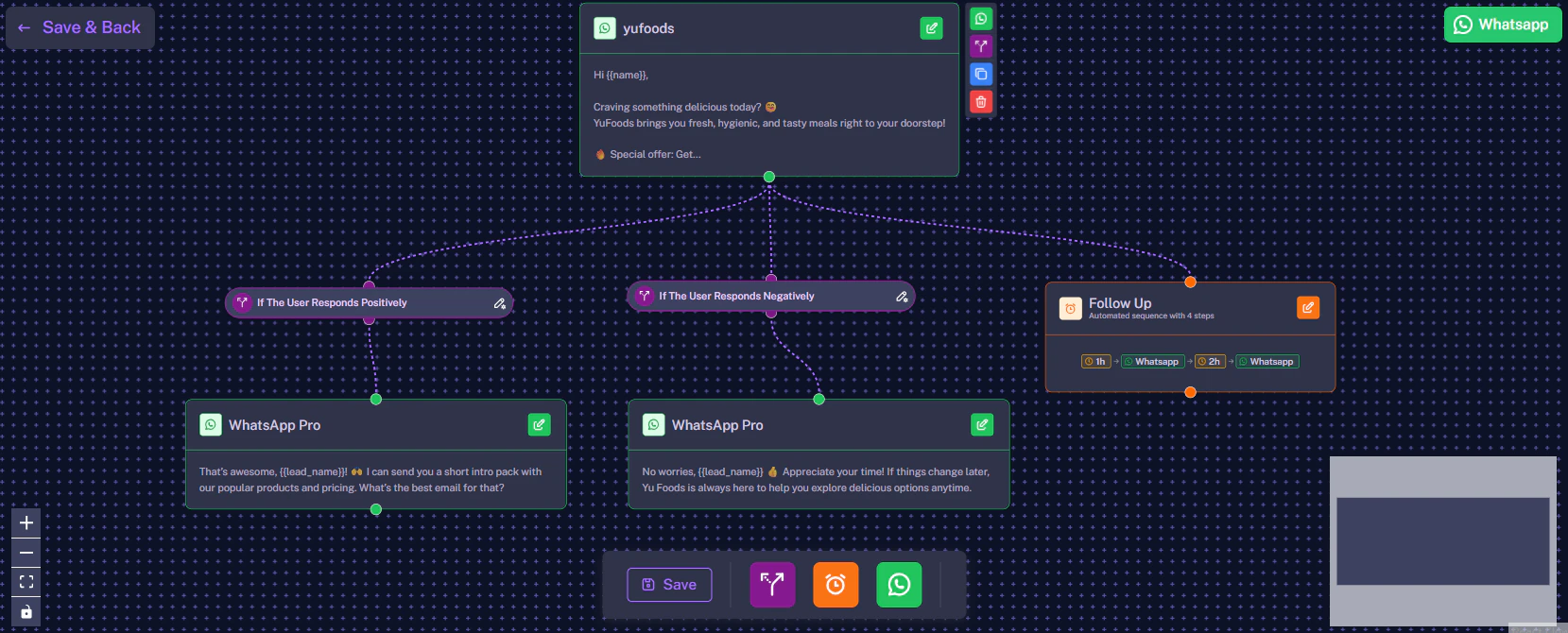
Once the AI detects a reply, it uses your defined Intents to route the conversation down the appropriate path on the canvas (such as a 'Positive Reply' node or a 'Negative Reply' node). You can customize these subsequent nodes by clicking their pencil icons to tailor the follow-up message perfectly, either locking in the sale or gracefully exiting the conversation, using the identical logic we detailed in the [Building Email Workflows](./email#3-handling-replies-intent-branches) guide.
## 4. Setting Up Delays and Drip Follow-ups
If a target lead does not respond, the workflow can route them into a simple drip campaign sequence. For example, as shown in the canvas above, you can set the workflow to send the first WhatsApp, **Wait 4 hours**, and then send a subsequent follow-up WhatsApp message. If they still don't respond, it can **Wait 1 Day** before sending another.
The timing and number of follow-ups are completely customizable, adhering to the same [logic and delays](./email#4-automated-follow-up-sequences) established in our email documentation.
## 5. Saving Your Workflow
After you have configured your initial messages, adjusted your intent branches, and customized your follow-up delays, it is time to save your progress.
1. **Save Individual Nodes:** Make sure you save any specific node you are currently editing. Click the **Save WhatsApp** button at the bottom of the sidebar for message nodes, or the **Save** button for follow-up delay nodes.
2. **Save Progress (Stay on Page):** While building your flow, you can periodically click the **Save** button located at the bottom middle of the canvas. This secures your entire workflow progress without leaving the builder.
3. **Save & Exit:** Once your entire workflow looks perfect, navigate to the top right of the screen and click **Save & Back**.
Clicking **Save & Back** will securely save your complete automation flow and return you to your main campaign dashboard.
Similar to configuring emails (as discussed in the [Building Email Workflows](./email) guide), you can personalize your message here.
1. Use **Dynamic Variables** by typing `@` to inject personalized data like `@firstName` or `@company`.
2. Define the **AI Prompt** that the bot should use to generate the WhatsApp message.
3. Define the **Intents** at the bottom of this sidebar to categorize lead replies. This logic works exactly the same way as the **Intent Branches** detailed in our [Building Email Workflows](./email#3-handling-replies-intent-branches) guide.
Click **Save message** when you are done modifying your node.
## 3. Response Paths (Positive/Negative)
Once the AI detects a reply, it uses your defined Intents to route the conversation down the appropriate path on the canvas (such as a 'Positive Reply' node or a 'Negative Reply' node). You can customize these subsequent nodes by clicking their pencil icons to tailor the follow-up message perfectly, either locking in the sale or gracefully exiting the conversation, using the identical logic we detailed in the [Building Email Workflows](./email#3-handling-replies-intent-branches) guide.
## 4. Setting Up Delays and Drip Follow-ups
If a target lead does not respond, the workflow can route them into a simple drip campaign sequence. For example, as shown in the canvas above, you can set the workflow to send the first WhatsApp, **Wait 4 hours**, and then send a subsequent follow-up WhatsApp message. If they still don't respond, it can **Wait 1 Day** before sending another.
The timing and number of follow-ups are completely customizable, adhering to the same [logic and delays](./email#4-automated-follow-up-sequences) established in our email documentation.
## 5. Saving Your Workflow
After you have configured your initial messages, adjusted your intent branches, and customized your follow-up delays, it is time to save your progress.
1. **Save Individual Nodes:** Make sure you save any specific node you are currently editing. Click the **Save WhatsApp** button at the bottom of the sidebar for message nodes, or the **Save** button for follow-up delay nodes.
2. **Save Progress (Stay on Page):** While building your flow, you can periodically click the **Save** button located at the bottom middle of the canvas. This secures your entire workflow progress without leaving the builder.
3. **Save & Exit:** Once your entire workflow looks perfect, navigate to the top right of the screen and click **Save & Back**.
Clicking **Save & Back** will securely save your complete automation flow and return you to your main campaign dashboard.