> ## Documentation Index
> Fetch the complete documentation index at: https://cybernauts.mintlify.site/llms.txt
> Use this file to discover all available pages before exploring further.
# Using Recipes
> How to launch complex campaigns in one click using Flowiz Recipes.
The fastest way to start a campaign in Flowiz is using a **Recipe**.
A Recipe is a pre-configured workflow that connects data sources (like Google Maps) to Action Agents (like Email or WhatsApp).
## Accessing the Library
To open the Recipe Library:
1. Go to the **Automations** tab.
2. Click the purple **+ Create New Flow** button in the top right corner.
{/* Save as 'create-new-flow-btn.png' */}
 ## Choosing a Strategy
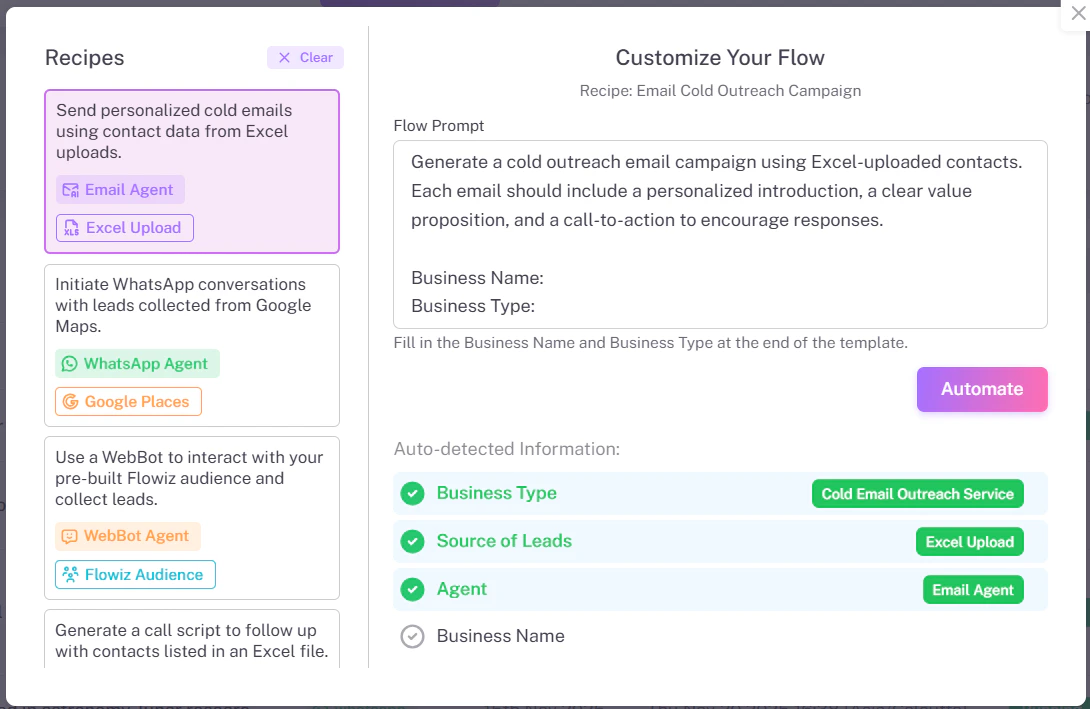
The library is divided into strategies based on your goal.
{/* Save as 'recipe-library.png' */}
## Choosing a Strategy
The library is divided into strategies based on your goal.
{/* Save as 'recipe-library.png' */}
 ### Common Recipes
**Trigger:** Excel Upload
**Action:** Sends a personalized email sequence.
**Best for:** B2B Sales when you already have a lead list.
**Trigger:** Google Maps Extractor
**Action:** Extracts phone numbers and sends a WhatsApp message.
**Best for:** Local businesses (e.g., selling to restaurants).
**Trigger:** Website Visitor
**Action:** Captures lead details via chat.
**Best for:** Customer support and lead qualification.
## Customizing a Recipe
Once you select a recipe, you will see the **"Customize Your Flow"** window.
1. **Flow Prompt:** You can edit the text instructions to change the tone (e.g., change "Professional" to "Friendly").
2. **Business Details:** Ensure your business name is correct so the AI introduces you properly.
3. Click **Automate** to generate the flow.
### Common Recipes
**Trigger:** Excel Upload
**Action:** Sends a personalized email sequence.
**Best for:** B2B Sales when you already have a lead list.
**Trigger:** Google Maps Extractor
**Action:** Extracts phone numbers and sends a WhatsApp message.
**Best for:** Local businesses (e.g., selling to restaurants).
**Trigger:** Website Visitor
**Action:** Captures lead details via chat.
**Best for:** Customer support and lead qualification.
## Customizing a Recipe
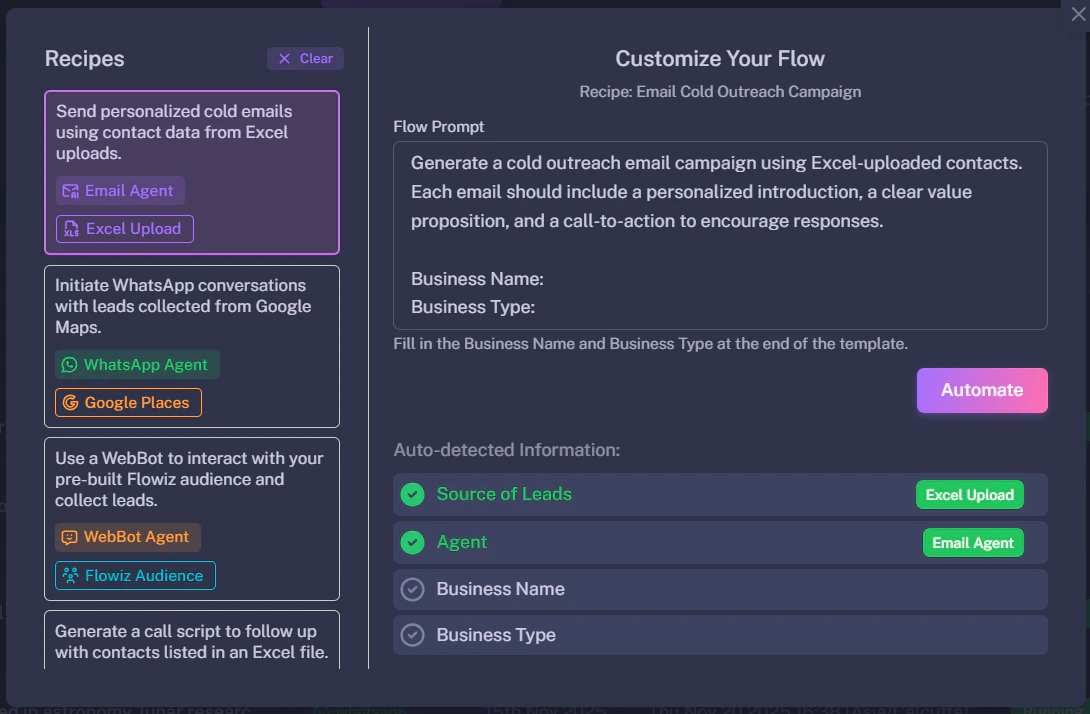
Once you select a recipe, you will see the **"Customize Your Flow"** window.
1. **Flow Prompt:** You can edit the text instructions to change the tone (e.g., change "Professional" to "Friendly").
2. **Business Details:** Ensure your business name is correct so the AI introduces you properly.
3. Click **Automate** to generate the flow.