> ## Documentation Index
> Fetch the complete documentation index at: https://cybernauts.mintlify.site/llms.txt
> Use this file to discover all available pages before exploring further.
# WebBot Installation
> Embed the AI chat widget on your website to capture inbound leads.
The **WebBot** is a defensive agent. While other agents go *out* to find leads, the WebBot waits on your site to answer questions from visitors 24/7.
## 1. Configuration
Before you can install the bot, you must customize its appearance and behavior.
**Step 1:** Click the **Settings (Gear)** icon next to **WebBot**.
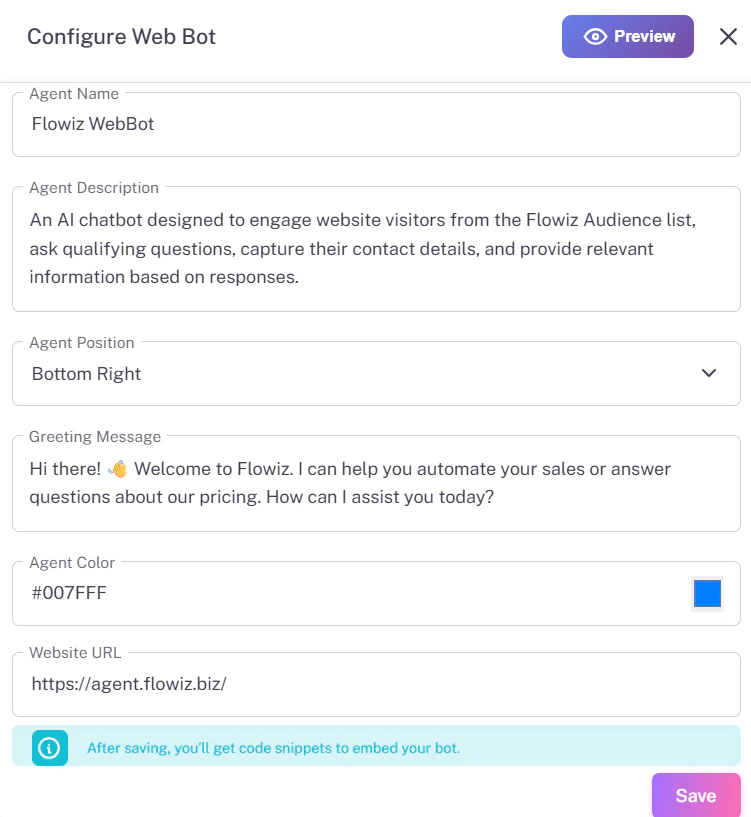
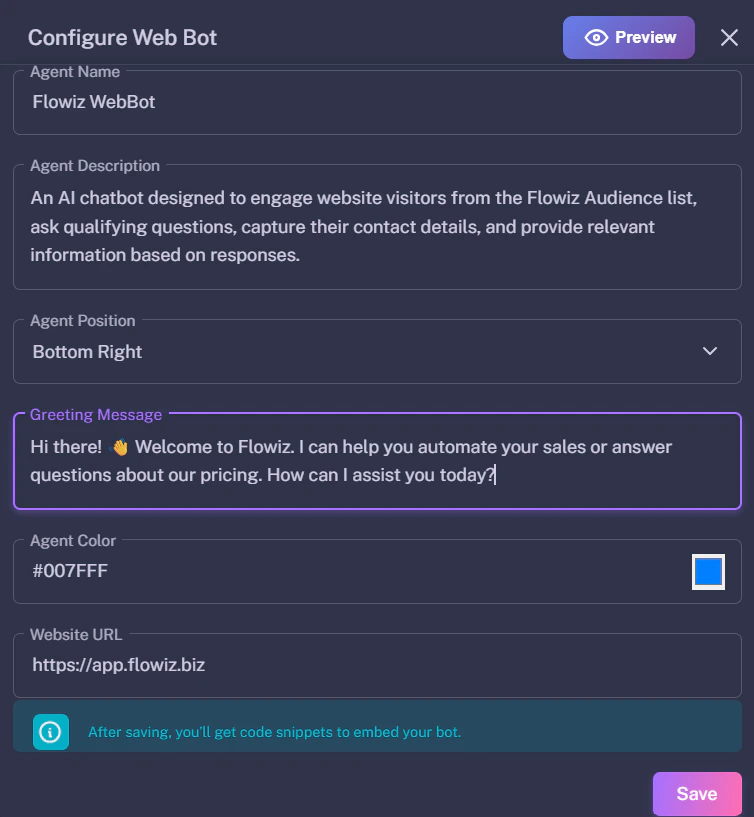
**Step 2:** Fill in the **Configuration Form**:
* **Agent Name:** The name visitors will see (e.g., "Support Assistant").
* **Agent Position:** Choose where the chat bubble sits (Bottom Right is standard).
* **Greeting Message:** The first thing the bot says (e.g., "Hi! How can I help?").
* **Agent Color:** Match this to your brand's color code.
 ## 2. Generating the Script
The installation code is hidden until you save your settings.
**Step 1:** Click the purple **Save** button at the bottom right.
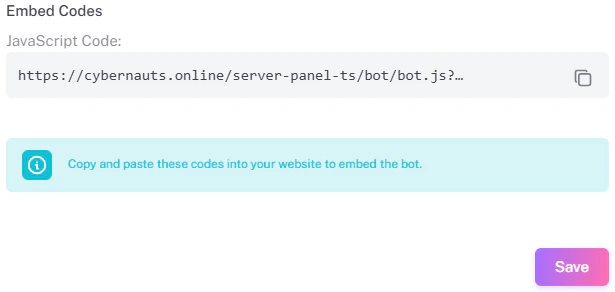
**Step 2:** Scroll down to the newly visible **Embed Codes** section.
**Step 3:** Copy the **JavaScript Code** from the gray box.
## 2. Generating the Script
The installation code is hidden until you save your settings.
**Step 1:** Click the purple **Save** button at the bottom right.
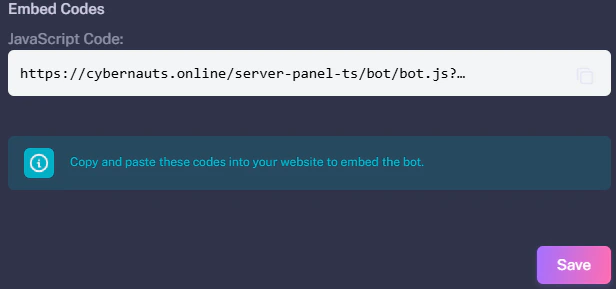
**Step 2:** Scroll down to the newly visible **Embed Codes** section.
**Step 3:** Copy the **JavaScript Code** from the gray box.
 ## 3. Installation
To make the bot appear on your site, paste the code into your website's HTML source.
**Where to Paste:**
Paste the code inside the `` or `` tags of your website.
* **WordPress:** Use a plugin like "Insert Headers and Footers".
* **Custom Site:** Paste it into your `index.html` file.
## 3. Installation
To make the bot appear on your site, paste the code into your website's HTML source.
**Where to Paste:**
Paste the code inside the `` or `` tags of your website.
* **WordPress:** Use a plugin like "Insert Headers and Footers".
* **Custom Site:** Paste it into your `index.html` file.